
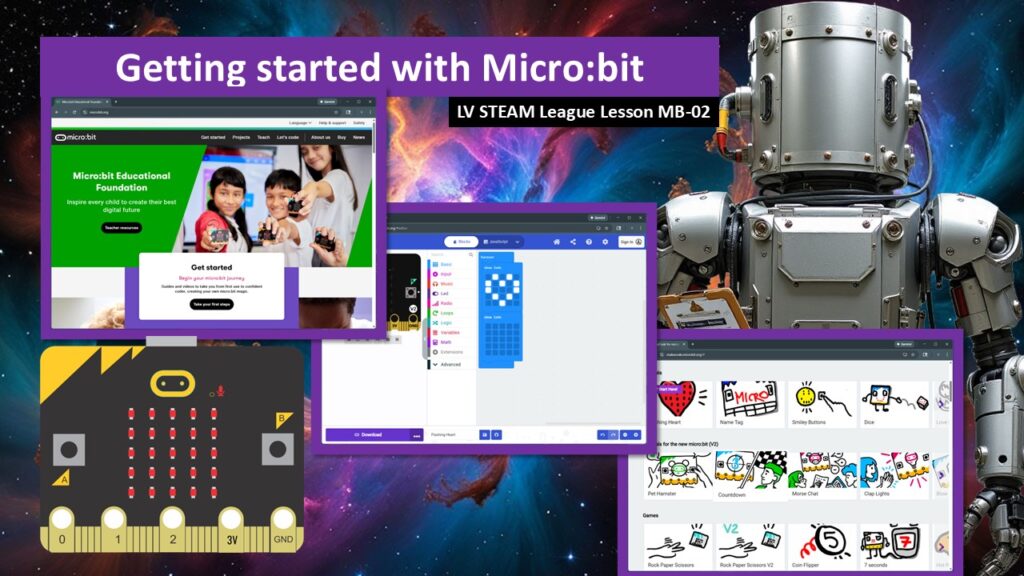
In this lesson students learn how to connect their Microbit, open the MakeCode editor, and complete their first guided tutorial. It’s a gentle, practical walk-through that shows students how to move from the physical board to digital coding and back again. They learn where to click, how tutorials work, and how to download a program so it runs on their Microbit. This lesson is all about confidence and familiarity before they begin building creative projects.
Student Learning Goals
By the end of this lesson students will be able to:
• Navigate to the MakeCode editor
• Open and follow a guided tutorial
• Understand how step-by-step instructions work in the editor
• Download a simple program to their Microbit
• Recognize where to explore next inside the MakeCode environment
Materials Needed
Each student or pair needs:
Microbit
USB cable
Computer or Chromebook with internet
Projector or shared screen for demo
Teacher Preparation Notes
This lesson is very procedural. Students will click through the same steps shown on your screen. Move slowly, especially with students who are new to coding tools. Encourage them to explore and not worry about mistakes; MakeCode lets them undo anything.
Have students connect their Microbits at the beginning so the download step later is smooth.
Safety Notes
Plug and unplug USB cables gently.
Keep cords clear of walkways.
No food or drinks near laptops or boards.
Warm-Up Activity
Ask students:
Have you ever followed a step-by-step tutorial online?
Let a few share experiences.
Explain that today they will follow a similar process, but this time it will make their Microbit come alive.
Lesson Flow
Step One: Getting to the Right Website
Students open their browsers and go to microbit.org.
You guide them to select Let’s Code, which leads to the MakeCode environment.
Teacher Note: Pause to make sure every student is on the correct page before continuing.
Step Two: Entering the MakeCode Editor
Students click MakeCode editor.
Explain that this is where they will build all future Microbit programs.
Reassure students that no account is required; MakeCode works without logging in.
Step Three: Starting a Tutorial
Students press Start Tutorial.
If their screen looks different, they tap the first small circle (the home indicator) to return to the tutorial selection.
Teacher Note: This is a great time to show how a tutorial guides them one small step at a time.
Step Four: Following the Instructions
Students read the instruction panel inside the editor.
They complete each task shown before pressing Next.
The progress bar shows how many steps they have finished and how many are left.
Let students work at their own pace. Support gently as they explore.
Step Five: Downloading Their First Program
When the tutorial is complete, it instructs students to Download.
Students connect their Microbits and save the program to the device.
They should see their animation or pattern appear on the LED grid.
Celebrate this moment. It’s their first real Microbit creation.
Step Six: Returning to the Editor and Exploring
Show students how MakeCode adds more blocks to the toolbox after they finish a tutorial.
Encourage them to click and look around.
Teacher Note: They do not need to create anything new yet. Today is about comfort and discovery.
Step Seven: Optional Next Steps
If students finish early, they can:
Try switching to JavaScript mode
OR
Click the Microbit logo at the top to explore tutorials, challenges, and short games
This shows them that the world of MakeCode is huge and ready for exploration.
Independent or Group Activity
Have students complete one additional short tutorial of their choice.
Ask them to:
• Download the new program
• Show a partner what changed
This reinforces the process and builds confidence.
Vocabulary and Concepts
MakeCode – The online coding environment used with Microbit
Download – Sending the program from the computer to the Microbit
Tutorial – A step-by-step guided activity inside MakeCode
Blocks – Visual coding pieces that create instructions
Wrap Up
Ask students:
What part of MakeCode felt familiar?
What surprised you?
What do you want to try next time?
Exit Ticket
Students answer:
• What is one step you remember from downloading a program?
Optional:
• What tutorial would you like to try next?
Quiz (5 Questions)
- What website do we start on to begin coding the Microbit?
• microbit.org - What menu option leads to the coding tools?
• Let’s Code - What is the name of the coding editor?
• MakeCode - What button do you press when you finish a tutorial?
• Download - What appears on your Microbit after a successful download?
• The program you created (such as a pattern or animation)
Teacher Reflection
Did students stay engaged during the tutorial?
Were any steps confusing or too quick?
Should future lessons slow down or speed up based on today’s pacing?
Which students might need extra support in later coding sessions?